Picasa Tips | How to fix an overexposed picture
This post is part of a (very) irregular series about using Picasa, a free (whee!) photo editing software. Because we're all about saving money around these parts. And because Photoshop is stinkin' hard. If you missed the earlier installments in this series, worry not. You can always access them in the Picasa category.
Today I'm going to show you how to fix an overexposed picture. Really, underexposed pictures are a more common problem, but I don't have material for that post yet, so we're tackling a less common problem first. Because I am just THAT organized.
Before I took this photo of my nephew outdoors, I was shooting indoors in a room with a white background, so I'd adjusted my exposure up a few stops. This was perfect for indoors, but outside, this setting produced a washed out, overexposed picture.
Whoops.
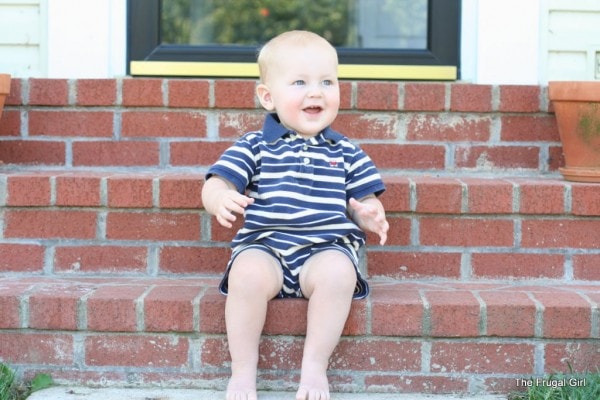
Fortunately, I noticed this before long, so I managed to shoot some pictures that were properly exposed. If I hadn't, though, I'd have needed to fix the overexposed ones. There's a very, very easy way to do this in Picasa.
Just click on the thumbnail of your picture, and that will open it up, ready for you to edit.
On the left side of your screen, on the Basic Fixes tab, there's an Auto Contrast button.
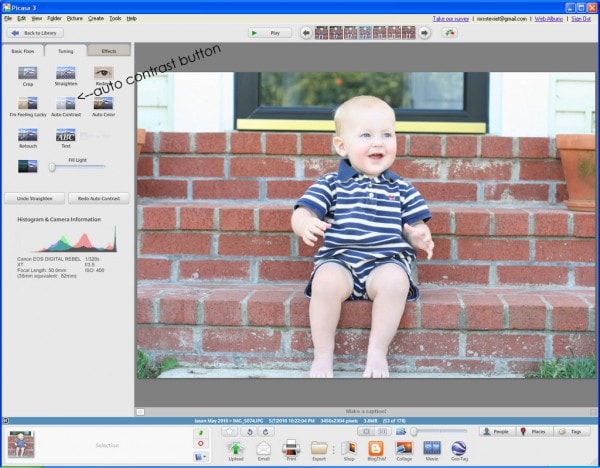
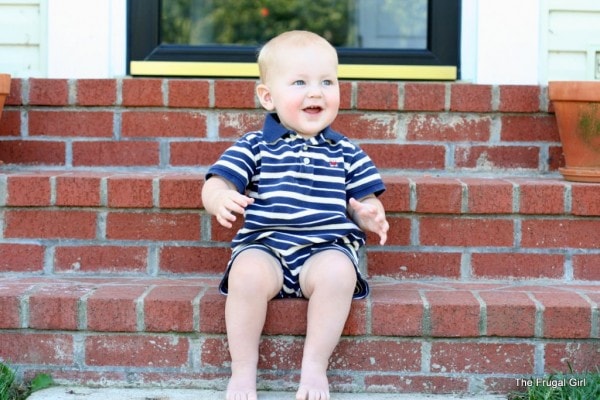
Just click it, and Picasa will adjust your picture's exposure for you. In this case, it'll darken the picture.
Oooh, that's better.
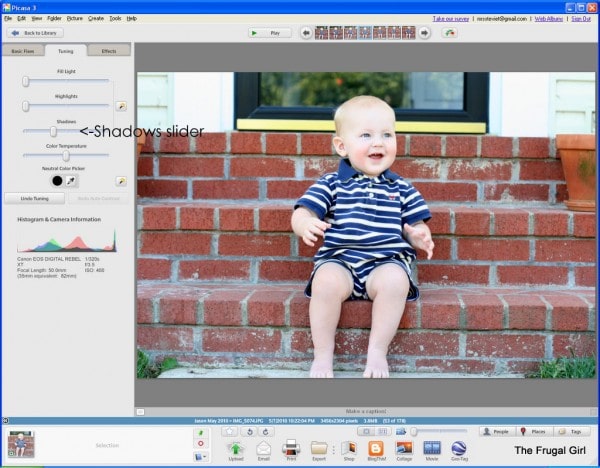
If you want a little bit more control over this process, click on the Tuning tab on the left side of your screen, and you'll be presented with several sliders. Since this picture has too much in the way of fill light and highlights, we don't want to mess with those sliders. Instead, to fix this picture I moved the shadows slider to the right until I was happy with it.
So, here's the before:
And the after:
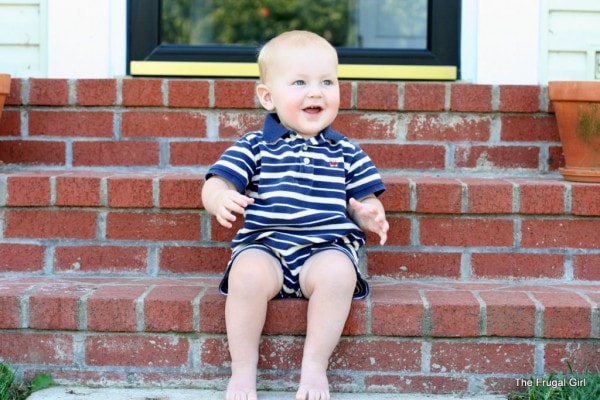
See? Totally easy.
Even if you have a point and shoot and you can't manually control the exposures (and thus screw up a photo like I did), you may run into a problem like this when you're shooting a dark subject, like something with a lot of black or dark blue (this happens to me all the time when I'm shooting food on my black dishes). Your camera will see the dark colors and think that it needs to compensate by letting lots of light in, and your picture will turn out too bright. Fortunately, you know how to fix that now.
Happy editing!
P.S. If you don't already have Picasa, you can download it for free.
P.P.S. I am in no way affiliated with Picasa. I just lurve Picasa and want to share it with you.
Today's 365 post: There's nothing quite like local peaches.
I just got back from vacation and did the same thing you did overexposing some gorgeous pictures of eagles. I will have to try this. Thanks for the tip!!!
Heh, I'm still using a film camera!
I have started using Picasa and your tips work great! I have fooled around with a couple of pictures and I am shocked at what a difference a few tweaks make. Thanks for the tips! Please keep these coming!
Whitney
The biggest problem with overexposing a digital shot is that you just plain run out of bits. All those white areas are spots on your picture where you can never get the detail back. Tweaking in Picasa can certainly help the shot look better, but there's still detail in those highlights that is gone forever. Whereas if you underexpose a picture there's actually a lot more detail in the shadows than you can see, so there's much more munging you can do in Picasa to fix an underexposed shot.
I've found that you can do repetitive "shadow", right click to save, "shadow", right click to save, etc to gradually darken up a picture.
i have pictures of statures in a museum where spot lights are directed toward faces and are overexposed when photographed. shadow control only makes dark areas more dark.
Yeah, it's very, very hard to use Picasa to fix overexposure like that, where you have some light areas and some dark areas.
In a situation like that, it's best to change how to take the shot in the camera (too little too late, I know!). I try to expose for the bright part (the statue), because it's way easier to fix the dark shadows than an overexposed statue.
over exposed face and legs in photo are still overexposed